Tour Tracker Tour de France Web Cheat Sheet

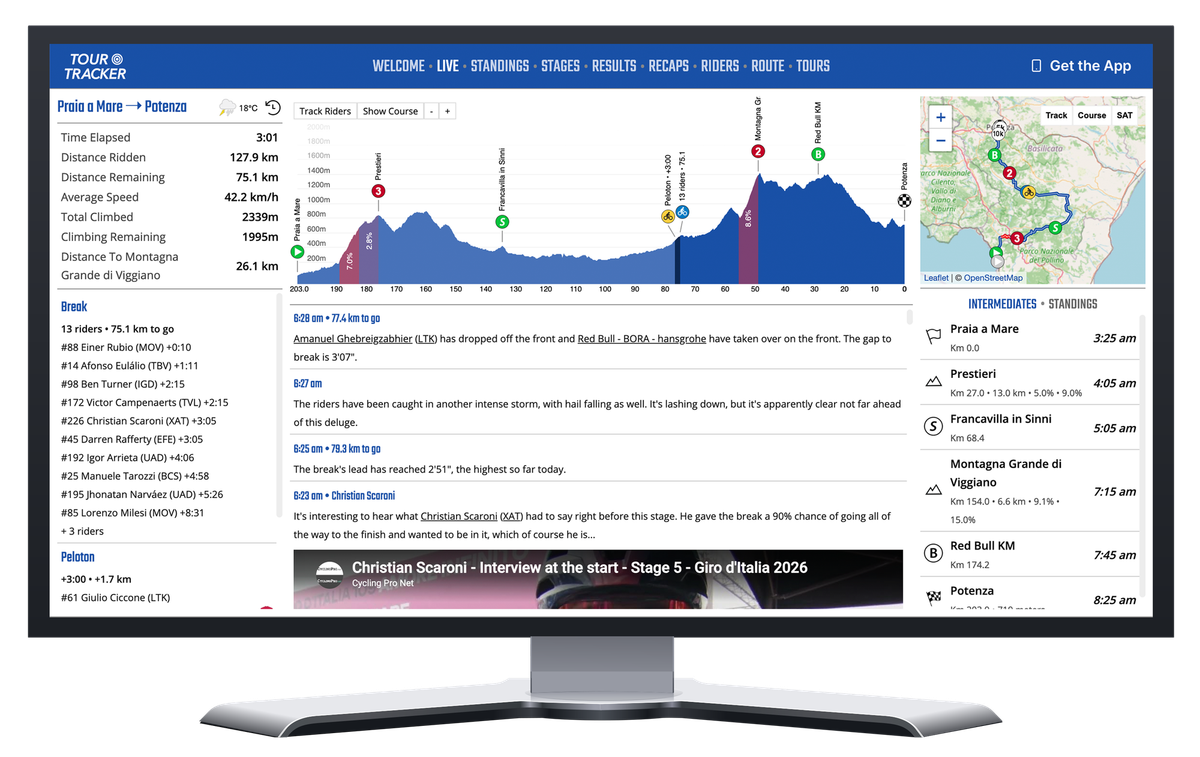
FLASH: Since this was posted, I've added Live 3D Tracking and Animated 3D Route Previews to the web and mobile apps! I wrote another article covering those here.
As you know, we have taken some of the most powerful elements of our award-winning Tour Tracker Pro Cycling mobile app and created a free "desktop" companion for the Tour de France for when you have the luxury of a big-screen at your side. We call it Tour Tracker Live.
To help maximize your experience with it, I wanted to write a quick cheat sheet for using the web app. The app is divided into TABS at the top. Note that depending on the width of your screen, the layout will change and some features will be hidden. The description below is based on a full window experience.
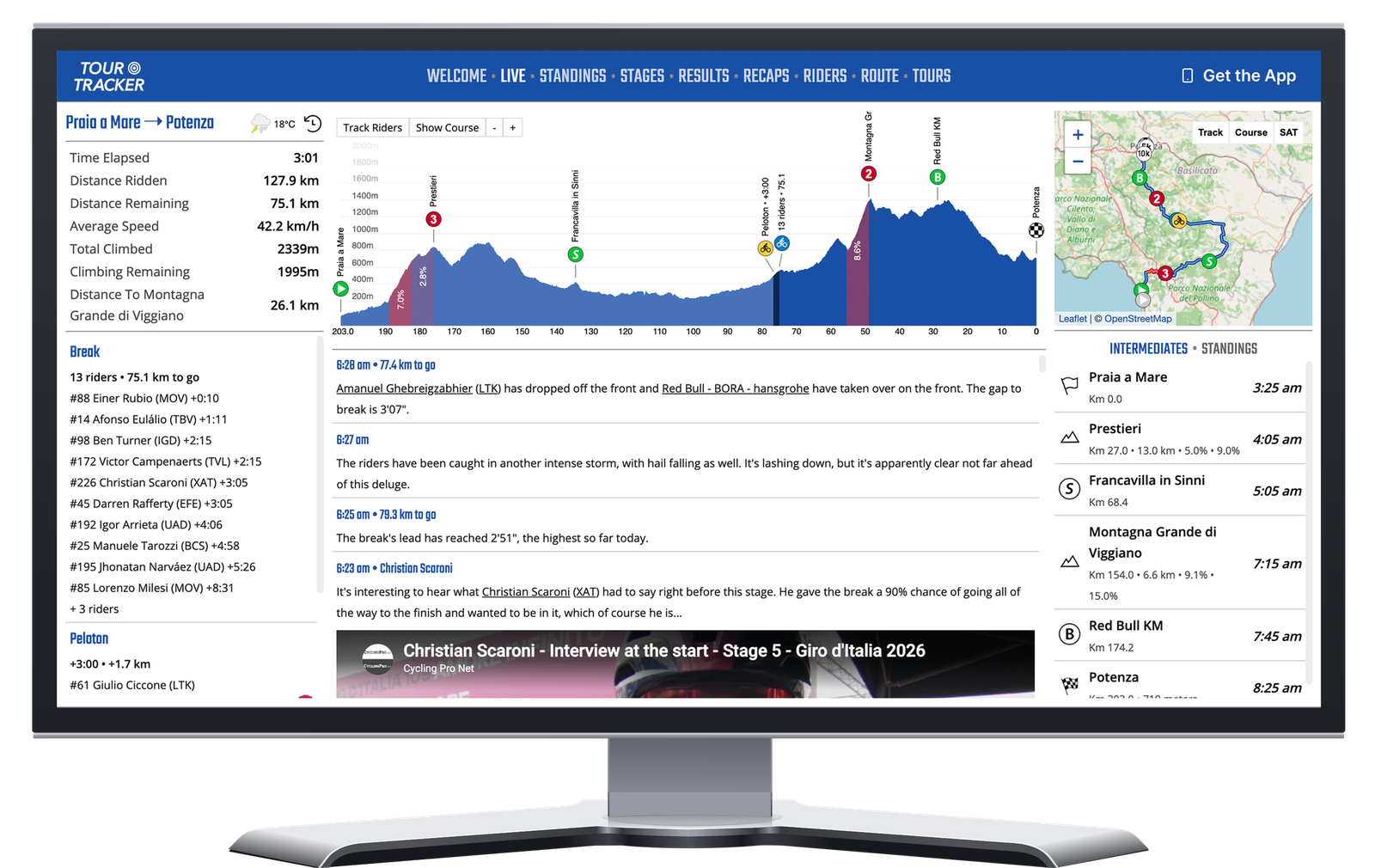
LIVE is where the the race comes to life. GPS tracking will show up on the interactive stage profile showing climb gradients, a stage map showing live wind direction & speed, and via the list of rider groups on the left. Our live commentary is just below the profile, and there is a time-table of sorts on the right, listing each intermediate. Here are some things to try:
• Click on the Track Riders button on the profile or map to zoom in and follow the riders as the race unfolds. Click on the plus/minus buttons on the profile to zoom in and out as you wish. It also scrolls left and right.
• Click any of the icons on the profile or map to get popup details on climbs, sprints and rider groups. Both sprints and climbs include a Results option that is updated mid-race. The climb popup also has a Detailed Profile option that will show the gradients of the climb. The rider group popup lists the riders in the group. Click on one of them to get a rider detail page as described below.
• Click on the "four corners" button in the upper left of the profile or the lower right of the map to open a big version of the view.
• Click on any underlined rider names in the commentary to get a rider details popup, which includes options for Results - how they did in each stage - and their Palmares. You can also click on underlined team names or 3-letter codes to get a team popup.
• Click on a group of riders in the left column to get a popup list of the riders in that group, each of which you can click to get the rider's details.
• Click the weather icon - available once the Tour starts - to the right of the stage name to get details about the reported weather in the area.
• Click on any intermediate in the list of intermediates on the right to get the same climb and sprint details popup described above.
• Click on the Settings button in the lower-right to reveal a variety of options for controlling how the app works: Dark Mode, Always Use English (for UX and language), Commentary Language, etc.
• Finally... Click on the round arrow symbol in the upper left to the right of the stage name to launch Time Machine.
Time Machine
So that little round arrow might look tiny but it unleashes a beast of a feature! Generally, Time Machine lets you rewind the entire app to any moment in time in the race - or any race we have covered. This can be useful in a few ways.
1. Pause the app at the beginning of the day, completely avoiding spoilers as NONE of the GPS data, commentary, results or recaps will load until you are ready. You can use the Time Machine icon to do that before the current stage starts, or select the "Pause Live Coverage" option in the Settings menu at bottom right of the screen which will pause the app every morning for you.
2. Pause the app anytime during the stage. Why would you do that? Well, imagine you are watching live coverage of the race, but decide to pause and record the video on your TV. Just pause Tour Tracker and then once you start the video again, restart Tour Tracker using the controls at the bottom of the screen.
3. The key is YOU control what the app thinks is "live". This makes synchronizing Tour Tracker's data with your tape-delayed video simple. The video says 50km to go? Set Time Machine to 50km to go. Sweet!
To see an example of Time Machine in action here is a replay of Pogačar's most devastating attack during the 2025 Tour de France!
STANDINGS provides the latest rankings for all jerseys. Boring.
STAGES let's you browse the maps, profiles, previews and archived commentary of each stage. Not boring as you can use the Time Machine icon on this page to go back to ANY stage. Cool.
RESULTS let's you browse detailed results for each stage. Boring.
RECAPS is where you will find our end-of-stage summary of the day's action. Great journalism!
RIDERS offers details on every team and rider. Boring.
ROUTE provides both a map of all the stages where you can click on the stage number and it will zoom in on that stage AND a profile of all the stages lined up, a view of the race exclusive to Tour Tracker. Not boring!
Okay, that's a good start for today. More soon.
Allan